

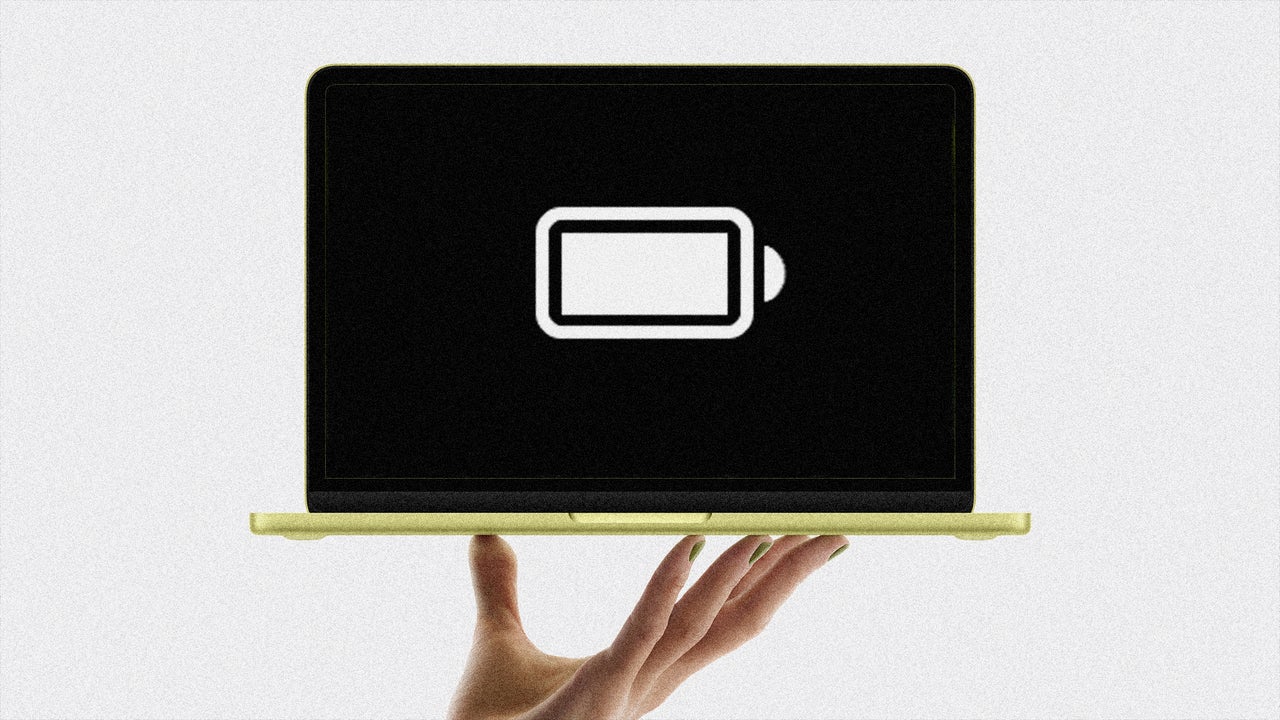
Maximize your Apple MacBook's battery life with these 4 simple tips.
4 Battery and Charging Tips to Keep Your Apple MacBook Running Longer Than Ever
In today's fast-paced world, having a reliable Apple MacBook is essential for productivity and efficiency. However, battery life can be a major concern, especially for those who are always on the go. Fortunately, Apple has introduced several battery and charging management features in macOS 26 that can help extend the life of your MacBook's battery. In this post, we'll explore four tips to help you get the most out of your MacBook's battery.
Tip 1: Turn on Low Power Mode
Low Power Mode is a feature that reduces your MacBook's energy consumption by lowering the CPU's performance, reducing display brightness, and limiting background tasks. This can be especially helpful if you're running low on battery and need to conserve power. To enable Low Power Mode, simply select the battery icon in your Mac's menu bar and click 'Low Power.' Alternatively, you can set it to always enable Low Power Mode by going to the Battery section in the Settings app and selecting 'Always' from the Low Power Mode dropdown menu.
Tip 2: Limit Your Battery's Maximum Capacity
It may seem counterintuitive to limit your battery's maximum capacity, but it can actually help extend its lifespan. Batteries are chemical products that age over time, reducing their ability to store energy. By limiting your battery's total charging capacity, you can slow down this chemical degradation and keep your battery lasting longer. To do this, go to the Battery section in the Settings app, click the 'I' button next to 'Charging,' and drag the Charging Limit slider to your preferred level.
Tip 3: Optimize Your Battery's Charging
Optimized Battery Charging is a feature that uses AI to learn your charging and usage patterns, and adjusts your charging schedule accordingly. This can help reduce the wear and tear on your battery, keeping it healthy and lasting longer. To enable Optimized Battery Charging, go to the Battery section in the Settings app, click the 'I' button next to 'Charging,' and toggle the Optimized Battery Charging switch to ON (blue).
Tip 4: Find Out If You're Using a Slow Charger
If you're using an older charger, you may be experiencing slow charging times. This can be frustrating, especially if you need to get back to work quickly. To check if your charger is slow, go to the Battery section in the Settings app, and look for the words 'Slow Charger' in orange. If you see them, consider upgrading to a faster charger that supports higher wattage.
By following these four tips, you can help extend the life of your Apple MacBook's battery and ensure that you're always productive and efficient on the go. Whether you're a job seeker or a tech professional, a reliable MacBook is essential for success. So take the time to learn these tips and start getting the most out of your MacBook's battery today!
As you're optimizing your MacBook's battery life, don't forget to also optimize your job search strategy. Make sure your resume and online profiles are up-to-date, and that you're networking with industry professionals. With the right tools and strategies, you can achieve your career goals and stay ahead of the curve.
